Key takeaways
- Seven of the ten are apps or web games and three are board games for the table.
- Pip STEM Games is available on the iOS App Store, Google Play and the Amazon Appstore, and two of its games play free in a browser.
- ScratchJr and PhET are free.
- Robot Turtles, Gravity Maze and Snap Circuits teach the same ideas without a screen.
- The best STEM games make a child predict, test and fix.
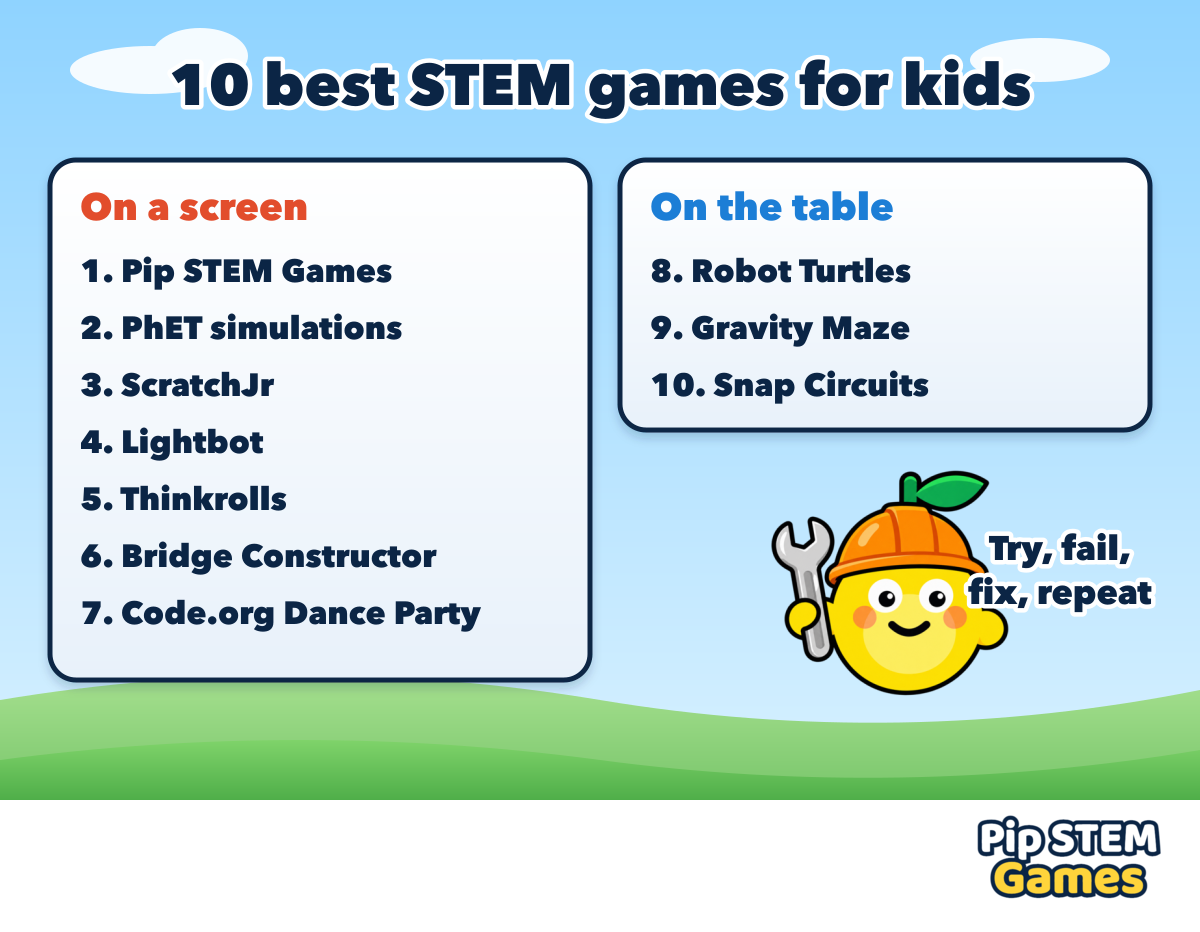
These are the 10 best STEM games for kids aged 5 to 12, seven apps and web games and three board games, with how to start each one.
1. Pip STEM Games
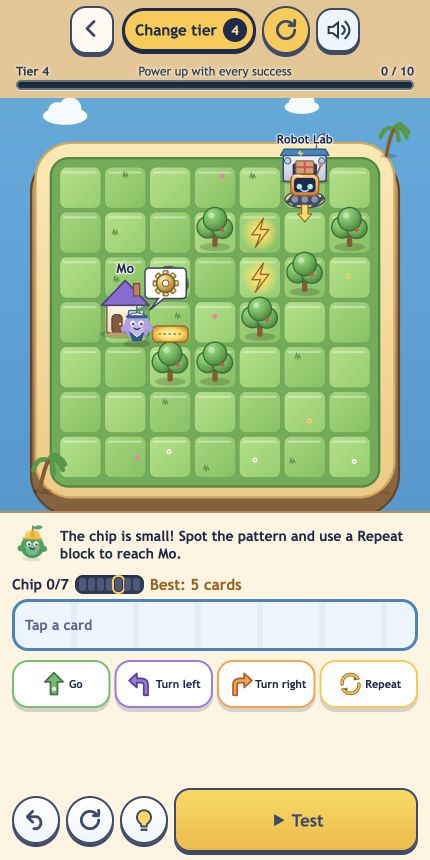
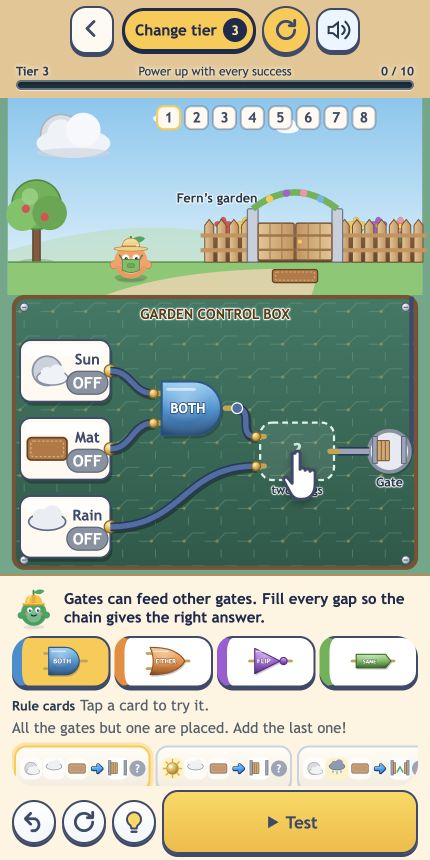
Ages 7–12 · iOS App Store, Google Play and Amazon Appstore · Free to play in the browser: Circuit Connect and Bridge Builder. Pip STEM Games is our own app, so we put it first and say so. It is a set of engineering puzzles on an island map, including Circuit Connect, Bridge Builder, Gear Factory, Pulley Puzzle, Tower Stack and Secret Codes.
Get the app from the iOS App Store, Google Play or the Amazon Appstore. Want to try before you download? Circuit Connect and Bridge Builder play free in your browser.
What it teaches: how circuits, beams, gears, pulleys and balance really work, by building, testing and fixing. A wrong answer is just a bridge that sagged, so the next try is the lesson.
How to start:
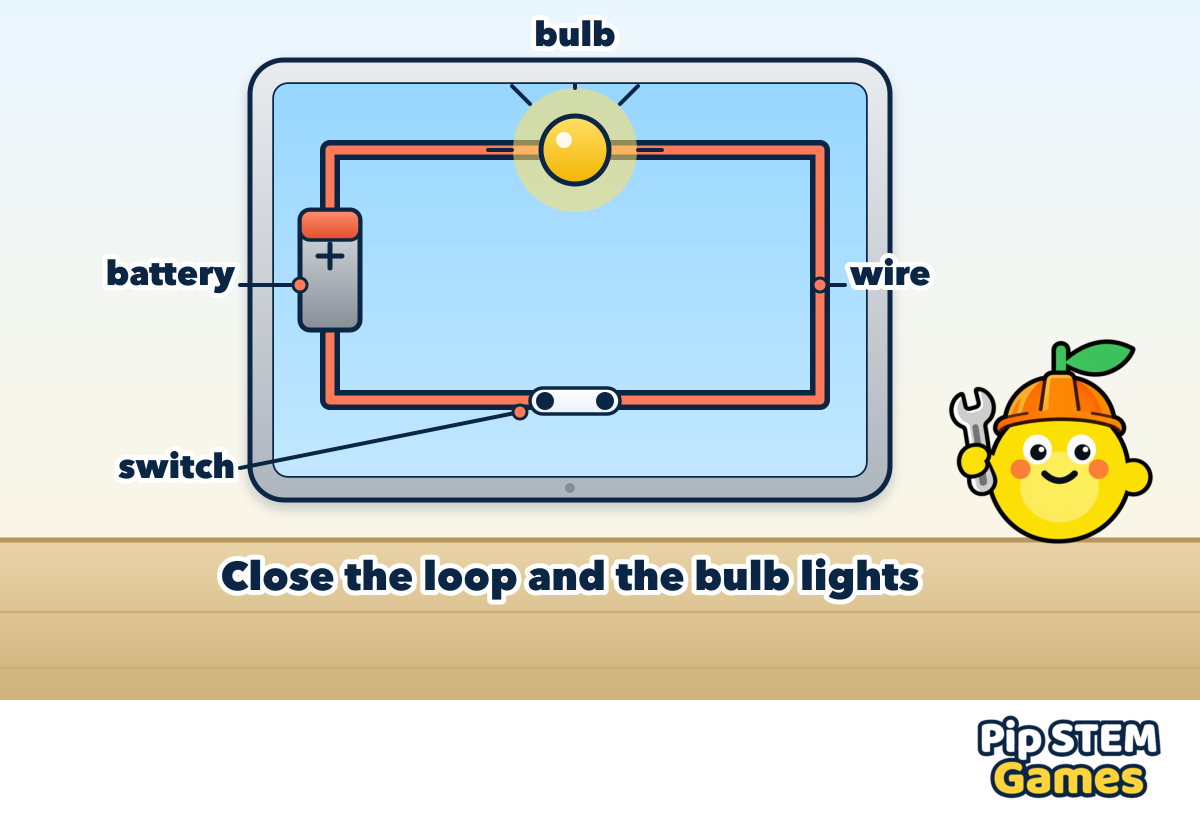
- Open Circuit Connect in your browser and look at the battery and the bulb.
- Drag wires between the dots, then press Test to see if the bulb lights.
- If it stays dark, trace the loop with a finger and find the gap.
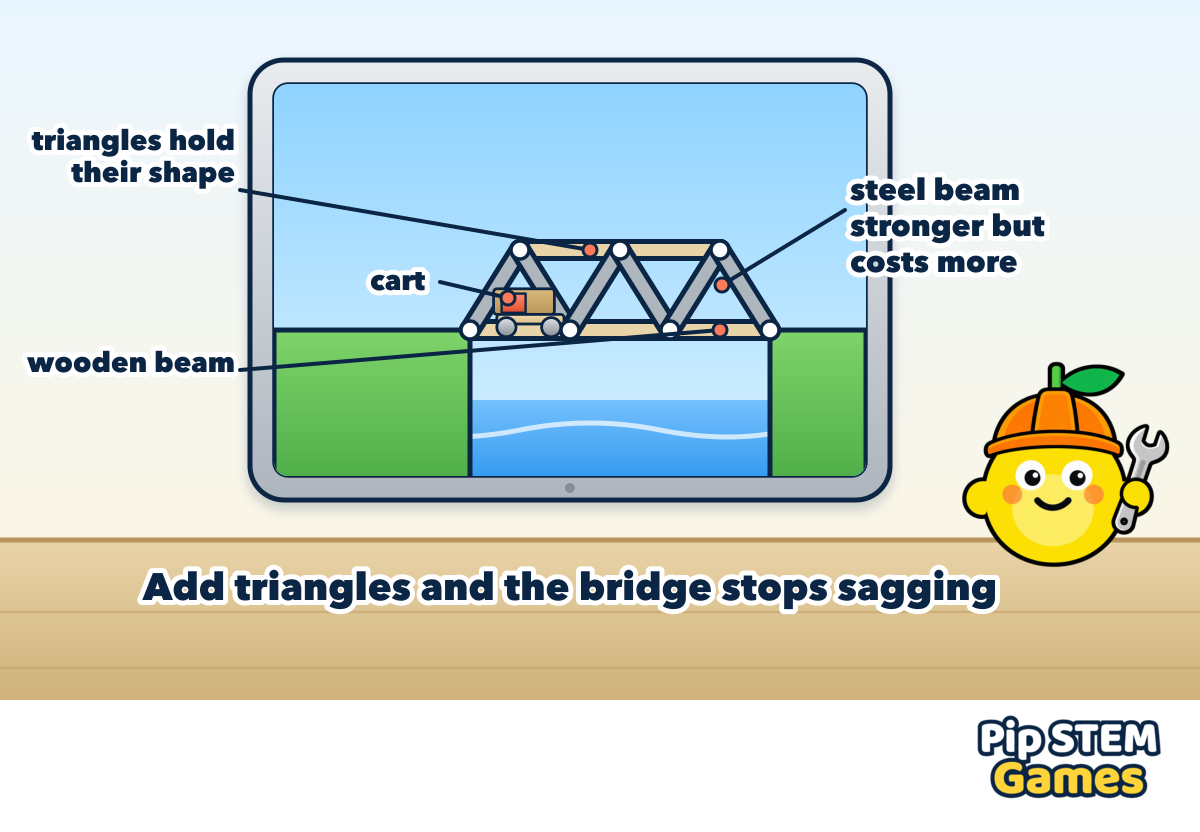
- Move on to Bridge Builder and add triangles wherever the bridge sags.
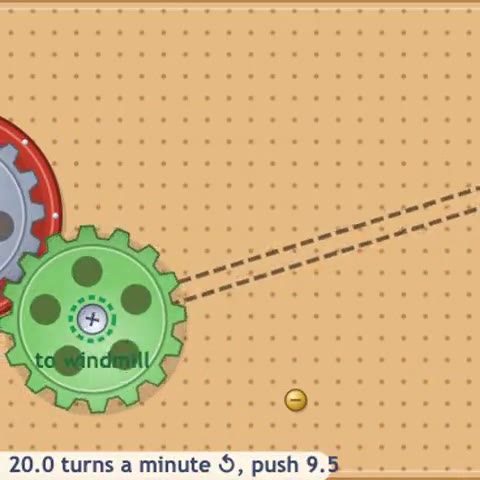
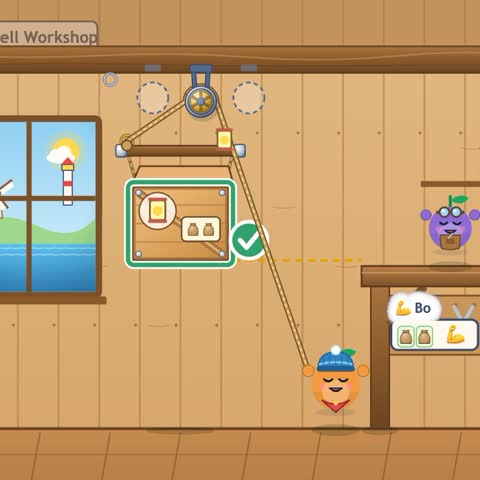
Stuck on a screen puzzle? Our broken circuit challenge and bridge choice puzzle use the same ideas on paper.
2. PhET Interactive Simulations
Ages: about 8 and up with a grown-up (our suggestion; PhET sets grade levels by simulation) · Runs in a web browser, including on iPads and Chromebooks · Free. PhET is a University of Colorado project that offers free science and maths simulations. Try Circuit Construction Kit: DC first. About PhET.
What it teaches: that changing one thing changes the result. Add a bulb, a switch or a longer wire and watch what the circuit does.
How to start:
- Go to phet.colorado.edu and search for Circuit Construction Kit: DC.
- Press play, then drag a battery, a bulb and wires onto the workspace.
- Close the loop and watch the bulb light.
- Predict first: what happens if you add a second bulb in a row? Then test it.
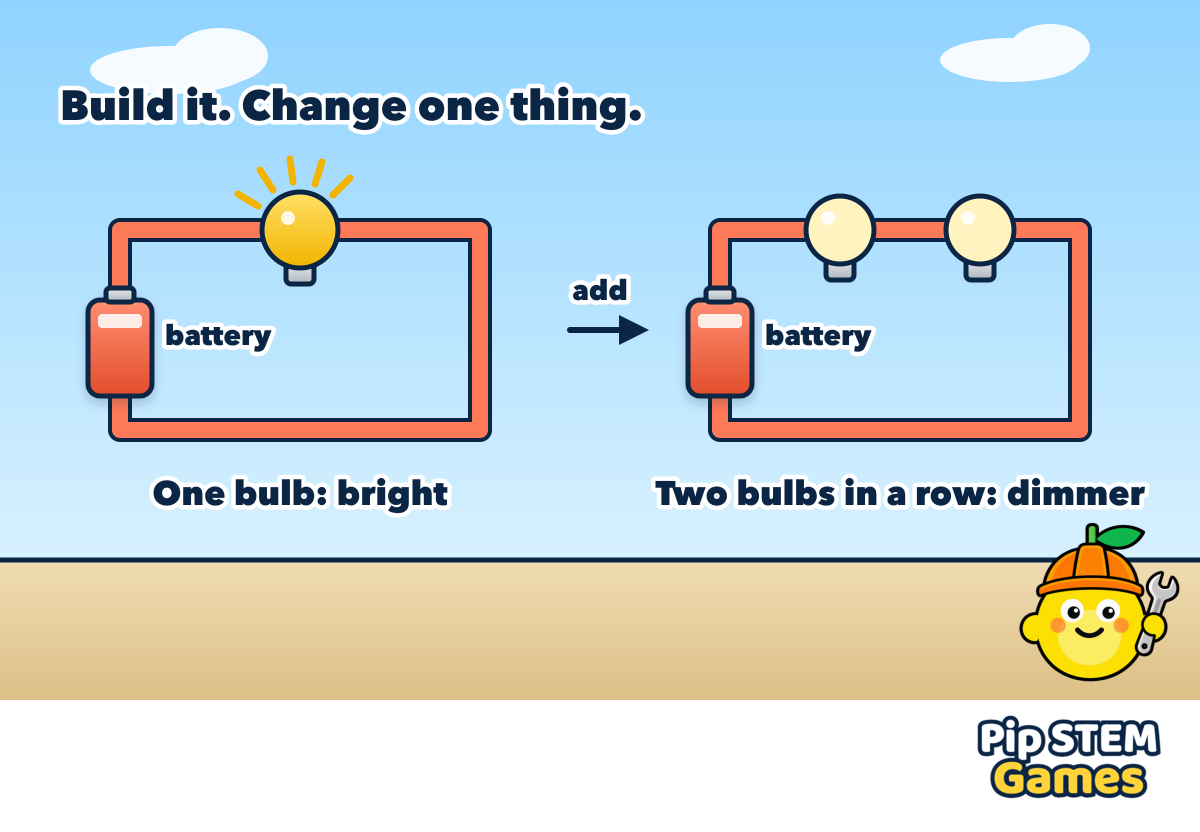
Frankly, the prediction step is the whole point. Ask your child to say what will happen before they click.
3. ScratchJr
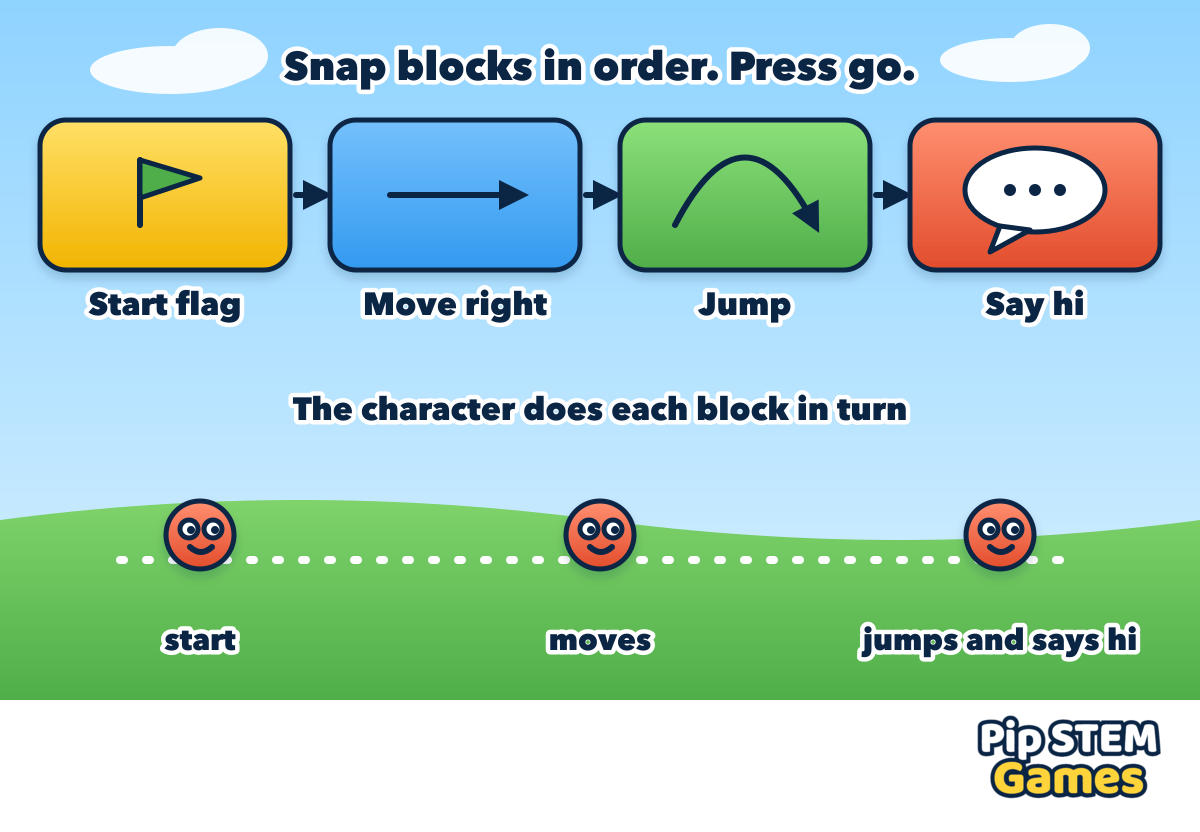
Ages 5–7 · iPad, Android and Chromebook · Free. A first coding app from MIT, Tufts University and the Playful Invention Company. Children snap blocks together to make characters move, jump and talk. It is now looked after by the Scratch Foundation. scratchjr.org.
What it teaches: sequencing. Blocks run in the order you place them, so order matters.
How to start:
- Install ScratchJr and open a new project.
- Pick a character from the picture menu.
- Drag a start block, then a move block and a jump block, into the coding area.
- Tap the start flag and watch. Swap two blocks and run it again.
Little ones love making their own story. Pair it with the paper puzzles in the Junior Engineers workbook.
4. Lightbot
Ages 4 to 8 (Lightbot Jr) · iOS, Android and Amazon · Lightbot Jr is paid. A puzzle game where you program a robot to reach and light a tile. lightbot.com.
What it teaches: step-by-step instructions, then shortcuts. Loops and procedures are the big ideas.
How to start:
- Install Lightbot Jr.
- Tap commands to build a program, then press run.
- If the robot misses the lit tile, change one step and run it again.
- When you repeat the same steps, put them in a loop.
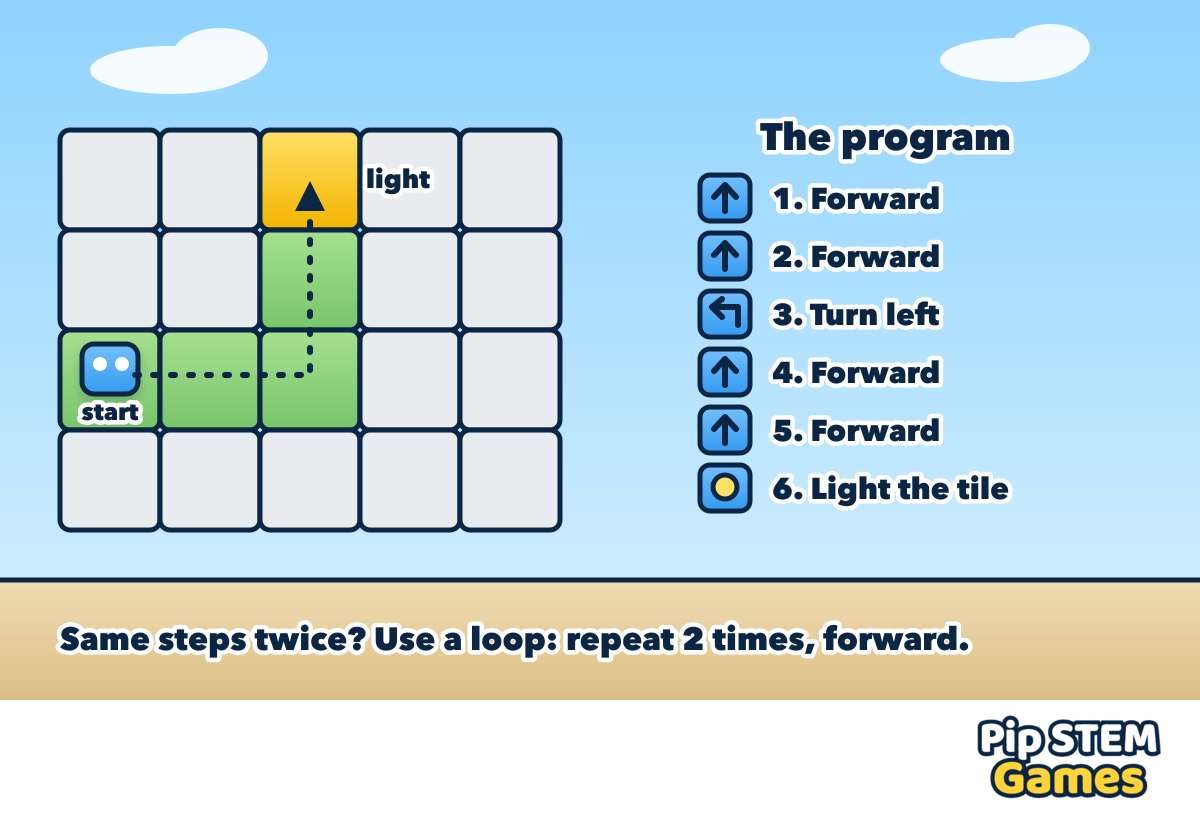
Try the same thinking offline with our conveyor belt logic puzzle.
5. Thinkrolls
Ages 3–8 (easier levels for 3–5, harder for 5–8) · iOS App Store (check Google Play for Android) · Thinkrolls 1 and 2 are paid. A physics and logic puzzle series from Avokiddo where round characters work their way through mazes. There are several titles, so check each store listing. avokiddo.com.
What it teaches: planning ahead and cause and effect. Dead ends are part of the game.
How to start:
- Install Thinkrolls 1 or Thinkrolls 2 on a tablet.
- Pick a character and a first level.
- Let your child try without hints for a few minutes.
- If they stall, ask: what is in the way?
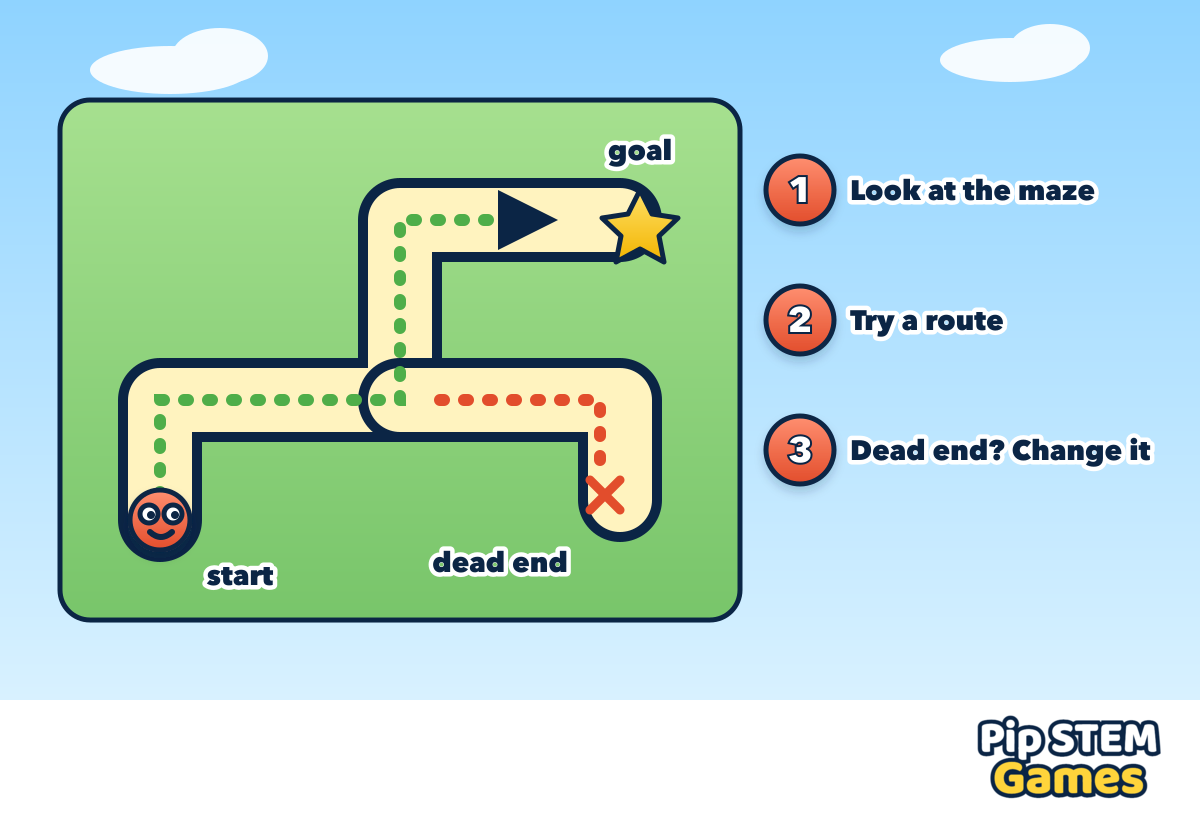
Resist the urge to point. A child who finds the dead end alone remembers it.
6. Bridge Constructor Playground
Ages 7 and up (our suggestion; rated 4+ on the App Store) · App Store (iPad, with iPhone and Mac also listed) · Free to download, with in-app purchases. You build a bridge, then a car or truck drives over it. Made by Headup. App Store listing.
What it teaches: how structures carry weight, why triangles are strong and why a heavier truck needs a stronger bridge. The game offers four building materials.
How to start:
- Open the first level and look at the gap.
- Build beams between the anchor points.
- Send the car over. Watch where the bridge bends.
- Add triangles there, then test with the truck.
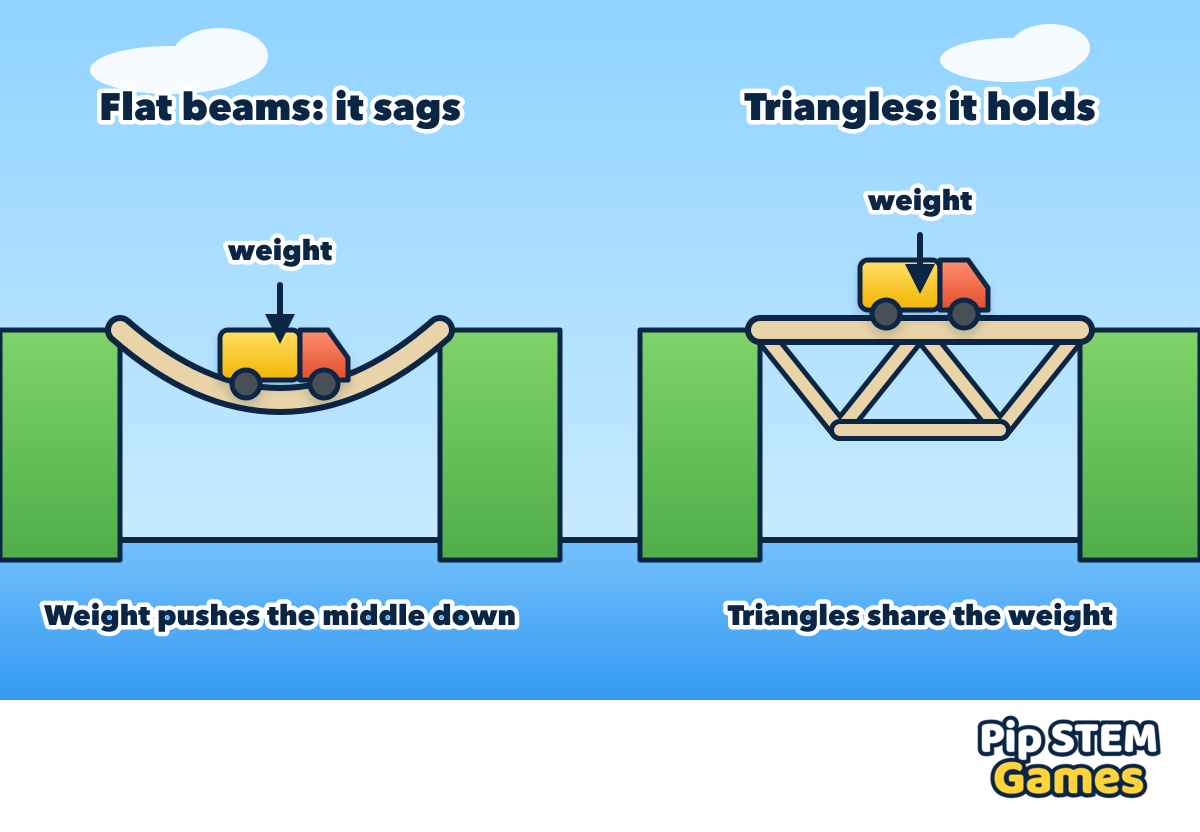
Build one for real afterwards with our bridge choice puzzle.
7. Code.org Hour of Code: Dance Party
Grades 3–8 (as listed by Code.org) · Online. Dance Party: AI Edition is one of the Hour of Code activities from Code.org. Children code a virtual dance party. code.org/hourofcode.
What it teaches: that code is a set of instructions that run in order and can repeat. The AI Edition adds a first look at how AI works.
How to start:
- Go to code.org/hourofcode and open Dance Party.
- Follow the first puzzles and drag blocks into place.
- Run the program and watch the dancers.
- Change one block, run it again and see what moves differently.
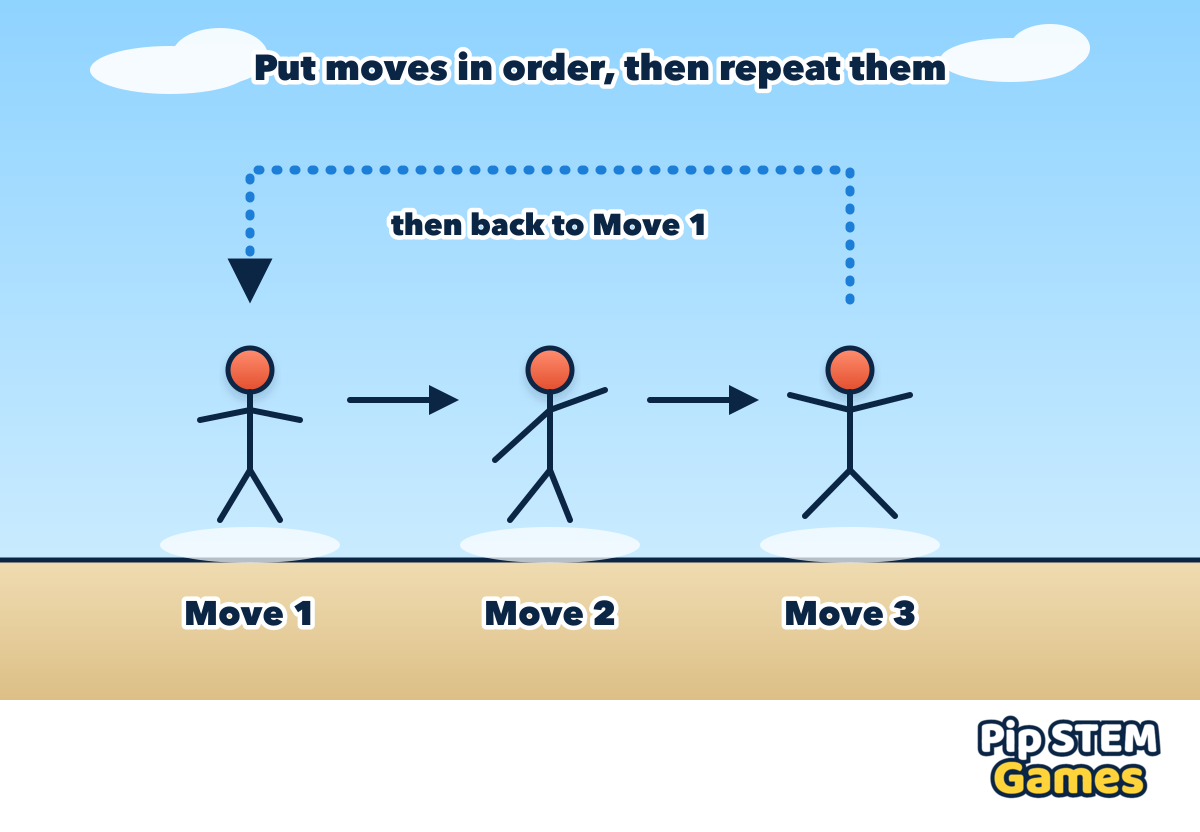
Some activities are listed for older classes, so sit with younger children.
8. Robot Turtles
Ages 4 and up · 2 or more players · Board game, paid. A card game from ThinkFun, designed by Dan Shapiro. Children lay code cards (forward, left and right) to steer their turtle to a gem. Younger children should play with a grown-up. ThinkFun page.
What it teaches: programming basics with no screen. Cards are commands. Each card is one command, and the order matters.
How to start:
- Set up the board with a turtle, a gem and some obstacles.
- Lay the cards in a row to plan a route.
- Run the cards and watch where the turtle goes.
- If it goes wrong, spot the bad card, then use a Bug Card or change the plan and run it again.
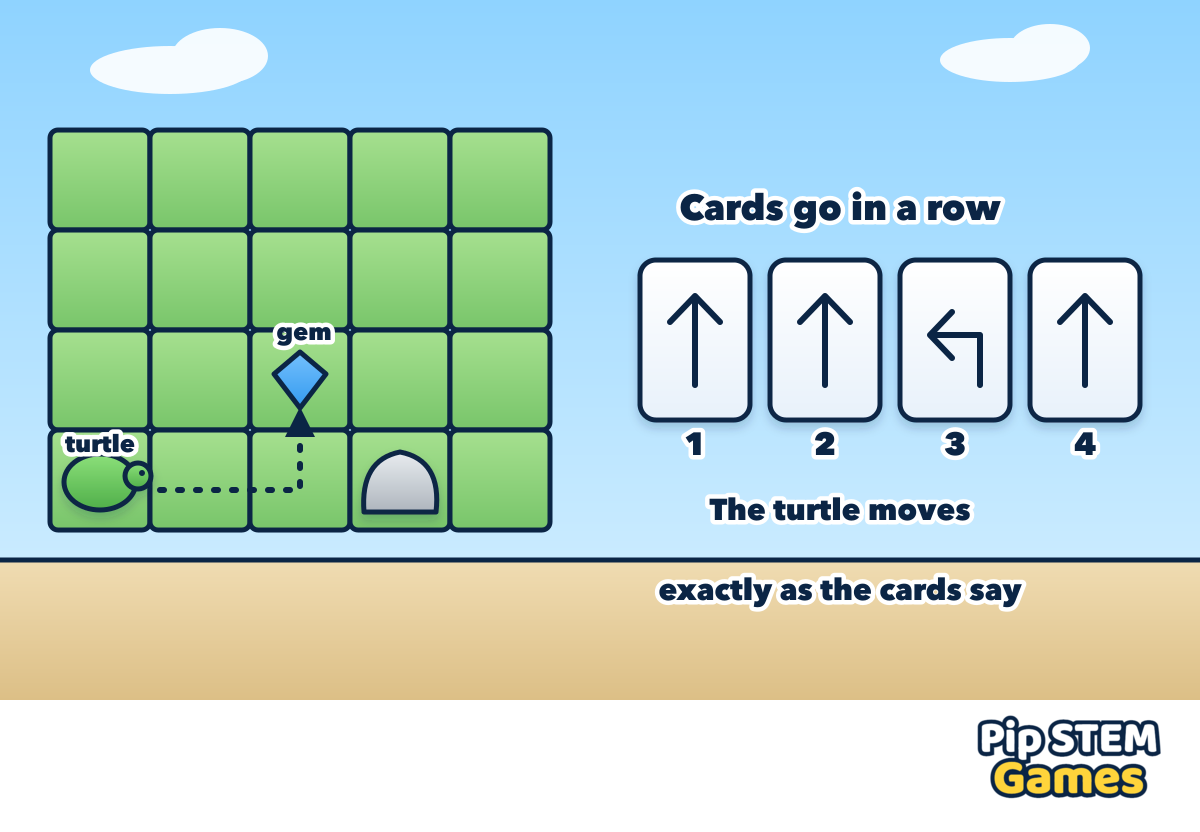
The turtle does only what the cards say, and that is the best bit. It shows children why computers need exact instructions.
9. ThinkFun Gravity Maze
Ages 8 and up · Board game, paid. A marble run logic puzzle with 60 challenges from beginner to expert, played with towers and three marbles. ThinkFun page.
What it teaches: planning in three dimensions, and the simple fact that a marble only rolls downhill.
How to start:
- Pick a beginner challenge and set up the towers it shows.
- Place the rest of the towers to make a marble path.
- Drop the marble in and watch where it goes.
- If it gets stuck, move one tower and try again.
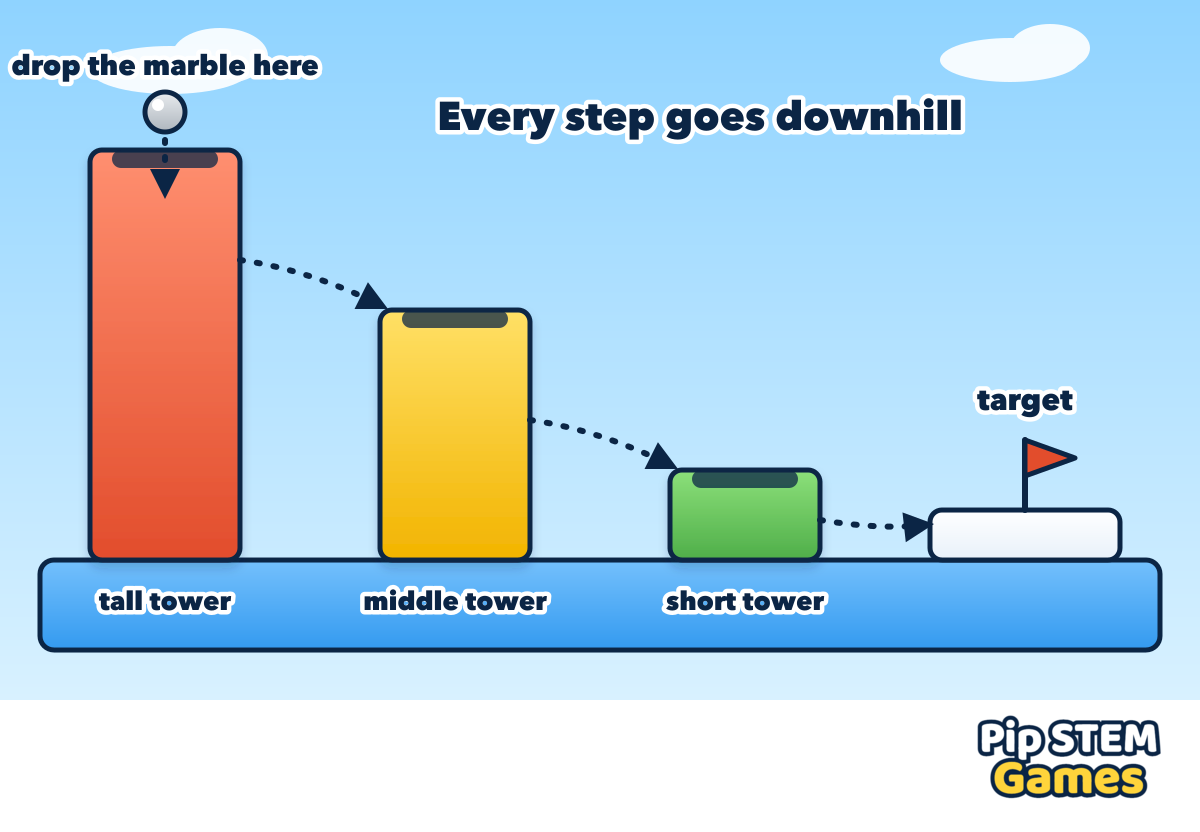
Love the idea? Build a cardboard version with our marble run guide.
10. Snap Circuits Jr.
Ages 8 and up · Electronics kit, paid. Elenco's Snap Circuits Jr. SC-100 is sold with a manual of more than 100 projects and snap-together parts. It needs two AA batteries, which are not included. Prices vary by seller. Elenco.
What it teaches: how a circuit works, with real parts such as a lamp and a switch. No tools or soldering.
How to start:
- Put two AA batteries in the battery holder.
- Choose the first project in the manual.
- Snap the parts onto the base grid to match the picture.
- Flip the switch. If nothing happens, press every snap down firmly.
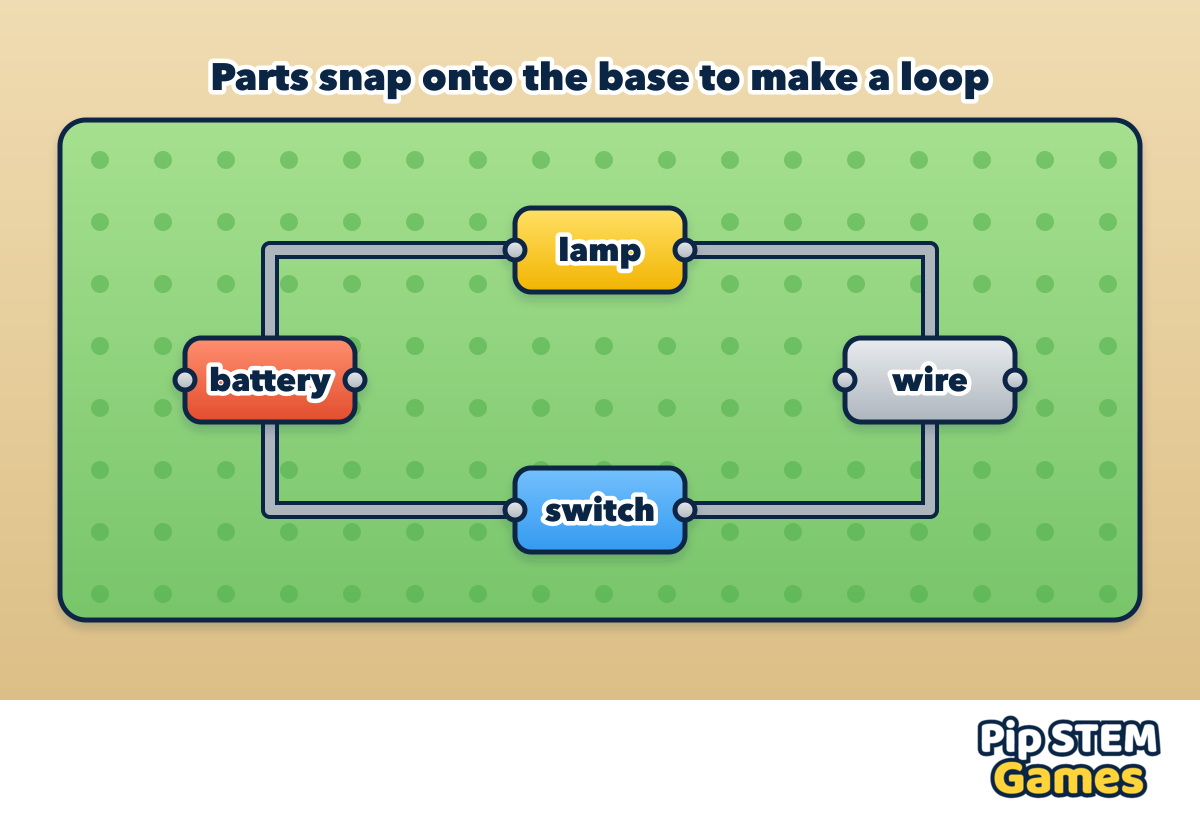
An adult should fit the batteries, and keep small parts away from children under three.
How to pick and use them
Pick by age first. For ages 5 to 7, try ScratchJr, Lightbot Jr, Thinkrolls and Robot Turtles. For ages 8 to 12, try Pip STEM Games, Gravity Maze, Snap Circuits, Bridge Constructor and PhET.
Balance screen time with hands-on play. After a screen puzzle about bridges or circuits, build the real thing from household items. Keep sessions short, sit beside younger children and ask them to explain what they tried.
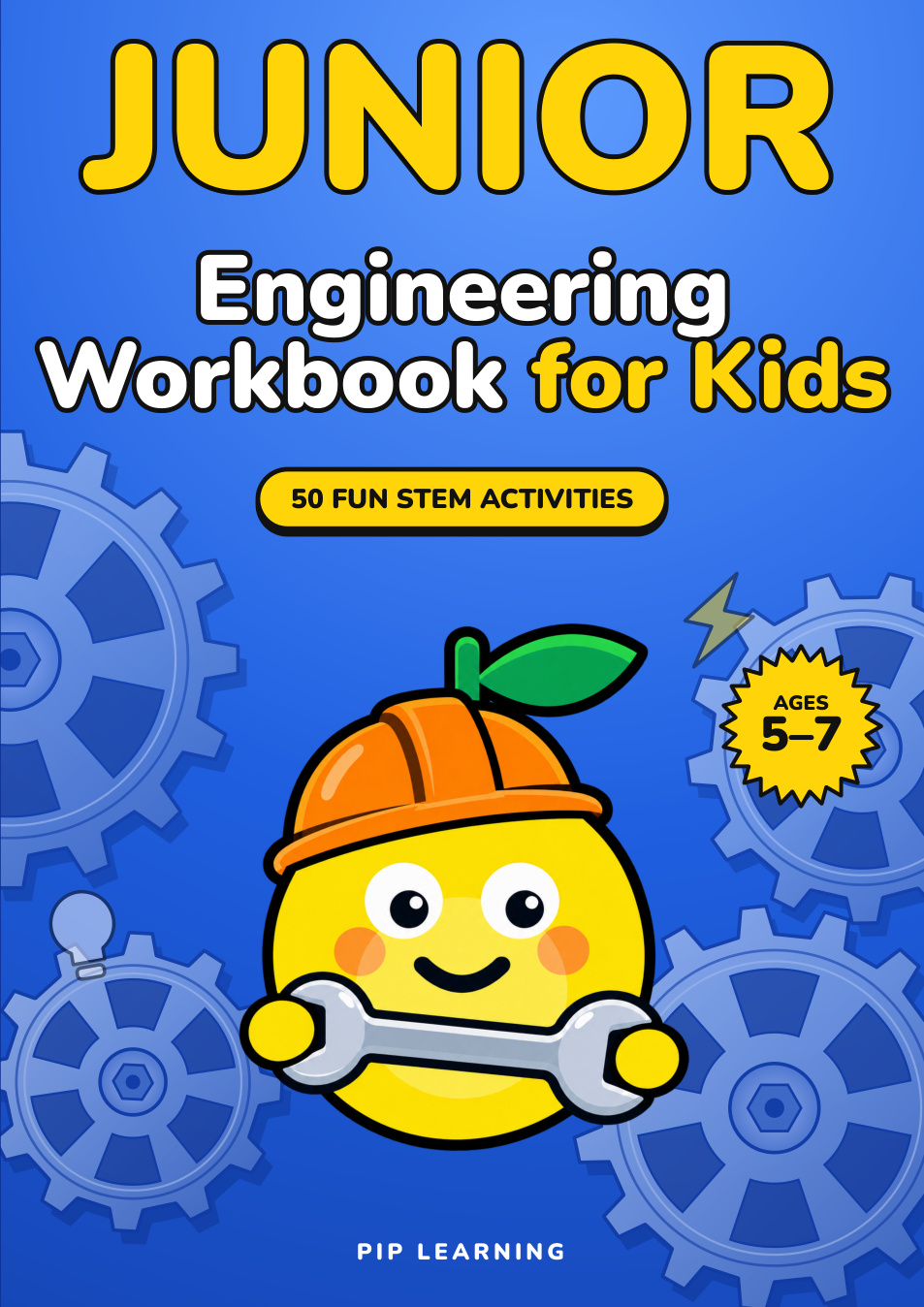
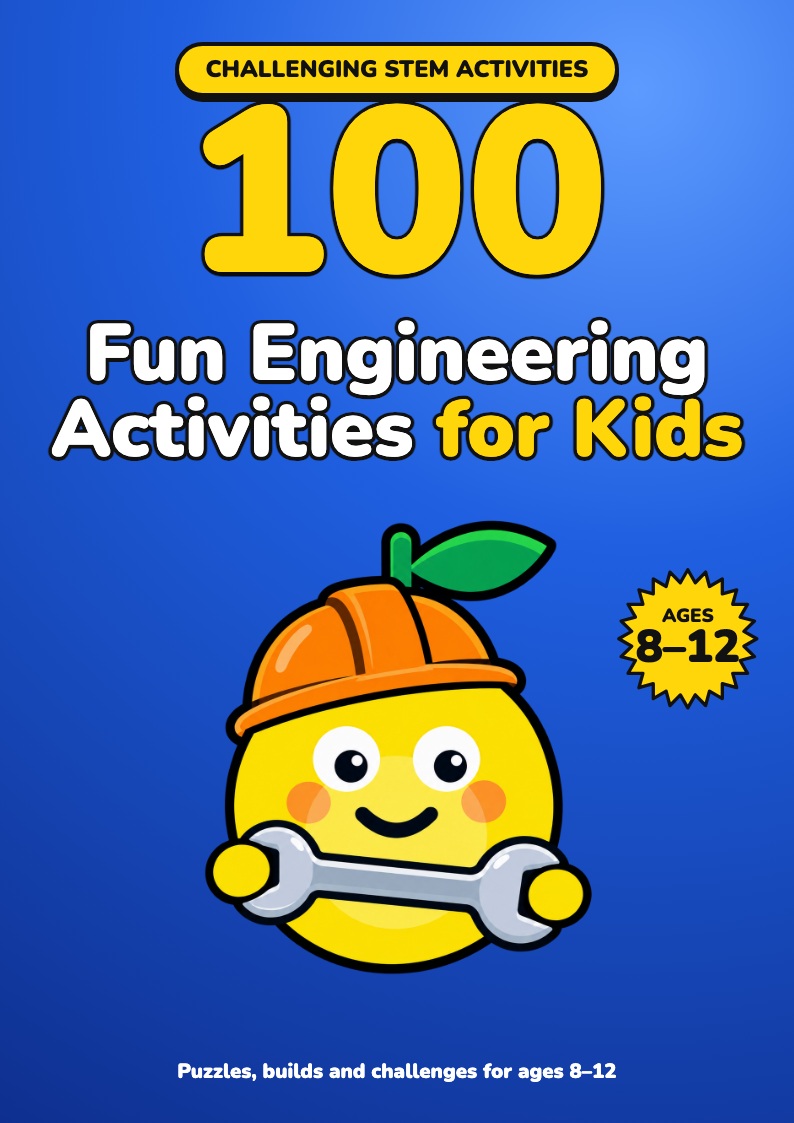
For paper practice, the Junior Engineers workbook suits ages 5 to 7 and the Senior Engineers workbook suits ages 8 to 12. Check each store page before buying, because prices and versions change.
Questions parents ask
What are the best STEM games for kids?
This list covers ten: Pip STEM Games, PhET simulations, ScratchJr, Lightbot, Thinkrolls, Bridge Constructor, Code.org Dance Party, Robot Turtles, Gravity Maze and Snap Circuits. They cover circuits, structures, coding and logic.
Are there free STEM games for kids?
Yes. ScratchJr and PhET are free. Pip's Circuit Connect and Bridge Builder are free to play in the browser, and Bridge Constructor Playground is free to download on the App Store.
Where can I get Pip STEM Games?
Pip STEM Games is available on the iOS App Store, Google Play and the Amazon Appstore. You can also try Circuit Connect and Bridge Builder free in your browser on this site.
What age are STEM games suitable for?
Ages 4 to 5 can start with Robot Turtles or Lightbot Jr, and ScratchJr from about age 5. Ages 8 to 12 suit Gravity Maze, Snap Circuits and the Pip puzzles. Younger children usually need a grown-up beside them.
Do STEM games really teach anything?
They can, if the child has to predict, test and fix. Games that only ask quiz questions mostly practise memory. Ask your child to explain what they did and you will soon know which kind it is.
Are STEM games better than STEM kits?
They do different jobs. Games are quick and good for trying many ideas. Kits and household builds show how real materials behave. Use both.
Great STEM activities to try next...
 Can Your Child Fix This Broken Circuit?Activity
 If This Gear Turns Right, Which Way Does the Last Gear Turn?Activity
 Which Bridge Would You Build?Activity
More to try: 12 Science Experiments for 10 Year Olds · 6 Best Paper Airplane Designs [Printable] · Circuit Games for Kids: Connect a Working Circuit
Pip STEM Games
We make engineering games and workbooks for kids aged 5 to 12. Every activity here is one we'd happily run at the kitchen table: test it, watch it fail, fix it, try again.